SSH key for GitLab in Windows OS

Did you wonder why are are getting Could not read from remote repository error conecting from your PC, this usually happend when we start working on a new pc or just a fresh configuration … you try to clone you nice code from your repo and POW !

git@github.com: Permission denied (publickey).
fatal: Could not read from remote repository.

Start by having a nice git client installed, I recomment https://git-scm.com/downloads/win since it add the “Open Git Bash Here” option to the right click on Windows. Warning Windows 11 have that option hidden under “Show more options”

If you are like my and prefer the Classic Menu Content follow this steps otherwise skip this steps

  1. Open a Command Prompt Window
  2. Type the next command and click Enter
    reg.exe add “HKCU\Software\Classes\CLSID{86ca1aa0-34aa-4e8b-a509-50c905bae2a2}\InprocServer32” /f /ve
  3. Restart File Explorer, you have two options: a) From Task Manager find Windows Explorer, right click it and select restart. b) Or restart your PC
  4. If you are not happy with the change you can reset it back to the new Moderm Context Menu
    Type the next command at a Command Prompt Window and click Enter
    reg.exe del “HKCU\Software\Classes\CLSID{86ca1aa0-34aa-4e8b-a509-50c905bae2a2}\” /f

* reference answers.microsoft.com restore-old-right-click-context-menu-in-windows-11

Back to bussines, add SSH to fix the error and get remote access

  1. Open Git Bash window
  2. Generate the key, paste the text below, replacing the email used in the example with your GitHub email address.
    sh-keygen -t rsa -b 4096 -C "your_email@example.com"
  3. Copy the key on you clipboard
    clip < ~/.ssh/id_ed25519.pub
  4. Login to your GitHub account,
  5. Click you avatar, select SSH and GPG keys,
  6. Click New SSH key and paste it 🙂

*reference and detailed steps:

https://docs.github.com/en/authentication/connecting-to-github-with-ssh/generating-a-new-ssh-key-and-adding-it-to-the-ssh-agent
https://docs.github.com/en/authentication/connecting-to-github-with-ssh/adding-a-new-ssh-key-to-your-github-account
Git gitignore pain :) sample scenario gradle.properties

This is the scenario:

New project, new IDE, you clone the project, Gradle fails, and you find out you are required to enter your credential in clear text into the gradle. properties… Keep reading 😉

What is required?

maven_user=YourUser

maven_pass=YourPasswordHere_BeCarfullDoNotCommitThisFileWithYourPass

BUT !

If the .gitignore file for the project does not have a line to exclude gradle.properties, the file will be listed as modified (which is correct), but you do not want to commit that change and make your credentials public.

Even if you go ahead and add the exclusion to the .gitignore the file will be included, but there is a fix.

.gitIgnore adding the exclusion

##Additional ignore

##Gradle properties due sensitive information to login

gradle.properties

git status

If you try a git status, you will notice gradle.properties is reported as modified even if you added it to the .gitignore file.

How to solve it

git rm -r –cached gradle.properties

Now gradle.properties changes have been removed from the cache, and you will be able to change them at any time without them being reported as modified since it is already on you . gitignoref file.

Additional Tip

II recommend adding a lot of blank lines so your credentials will not be visible if you open your gradle.properties in a call or when someone is looking at your screen, add some kind of warning, like:

##### WARNING YOUR PASSWORD IS ABOUT TO BE SEEN ####

##### WARNING YOUR PASSWORD IS ABOUT TO BE SEEN ####

That way, you will remember having that valuable information on the file any time you open it.

Final Note

Having maven_user and maven_pass on the project level is not the best option. Find your .gradle home directory, add gradle.properties there (if not already there), and add your desired configuration there, so you can forget about it once you have done it.

I hope you find this post useful.

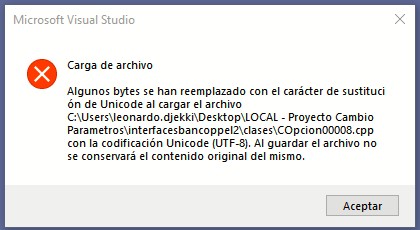
Error en Microsoft Visual Studio Community 2019

Al abrir un archivo se produce mensaje que algunos bytes se han reemplazado con el carácter de sustitución Unicode UTF-8

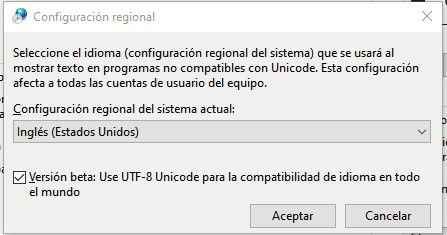
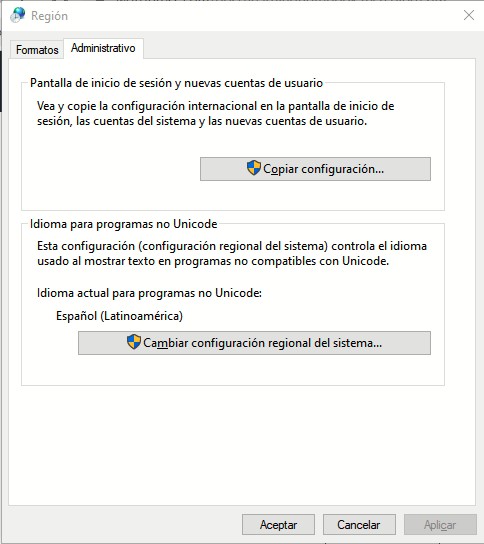
Para solucionarlo en Windows 10 se cambia la configuración unicode a Ingles:

  1. Cerrar Visual Studio
  2. Panel de Control –> idioma — > Region –> Administrativo –> cambiar configuración regional del sistema

4) Cambiar a Ingles (Estados Unidos)

5) Abrir nuevamente Visual Studio, ya no debe producirse el mensaje de error

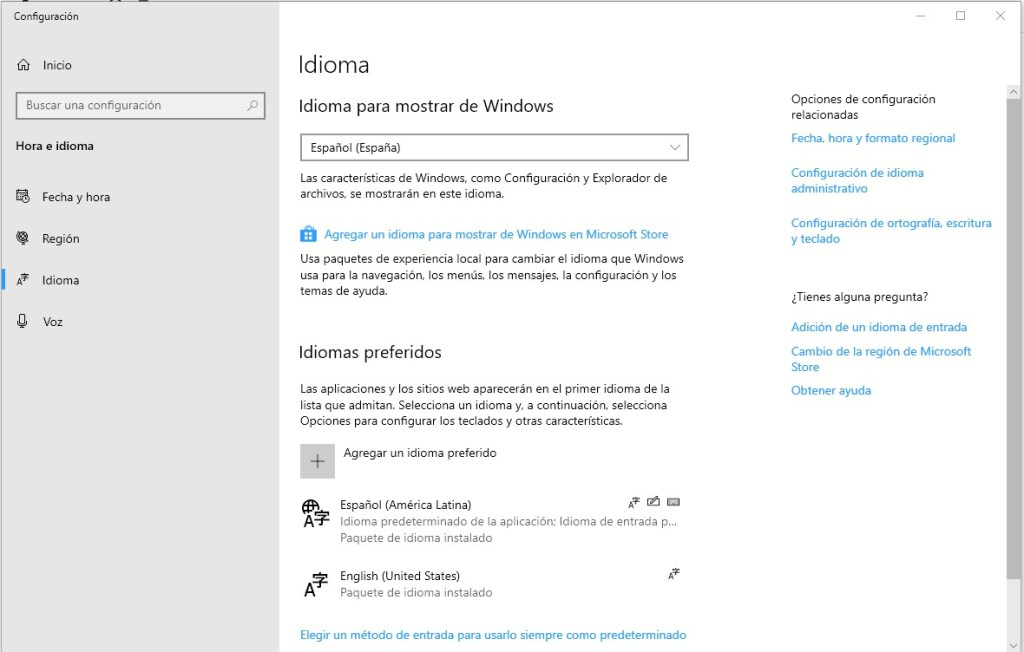
La forma alternativa de Windows 10 es usando el cuadro de busqueda, escribir “idioma”; seleccionar la opción “Editar opciones de idioma y teclado”

1) Seleccionar idioma del menu a la izquierda

2) Seleccionar “Configuración de idioma administrativo” del link a la derecha

3) Opcion Cambiar configuración regional del sistema

4) Seleccionar Ingles (Estados Unidos)

5) Abrir nuevamente Visual Studio, ya no debe producirse el mensaje de error

TypeScript First Steps


# Install TypeScript locally in your project. 
Having TypeScript set up on a per-project basis lets you have many projects with many different versions of TypeScript, this keeps each project working consistently.
npm install -D typescript
npm install -D ts-node

# Or globally
It can be handy to have TypeScript available across all projects, often to test one-off ideas. Long-term, codebases should prefer a project-wide installation over a global install so that they can benefit from reproducible builds across different machines
npm install -g typescript
npm install -g ts-node

Lets go by the global option:

I have installed globally and in always add locally to each project :
mkdir firstTypeScript
cd firstTypeScript
npm install -D typescript

Note: The global option make the library available from any directory on your machine, but installing locally on your project make it available to the current project as a dependency, so it´s added in the node_modules folder

Now let review a basic sample based on https://www.typescriptlang.org/docs/handbook/typescript-tooling-in-5-minutes.html


function greeter(person) {
  return "Hello, " + person;
}
let user = "Jane User";
document.body.textContent = greeter(user);


Save the code as greeter.ts and compile with tsc greeter.ts

Compilation produce file greeter.js, Let add some TS functionalities to see how it is transpiled to JS

Interfaces

In TypeScript, two types are compatible if their internal structure is compatible. This allows to implement an interface without an explicit implements clause

interface Person {
    firstName: string;
    lastName: string;
}

function greeter(person: Person){
    return "Hello, " + person.firstName + " "+ person.lastName;
}

let user: Person = {firstName: "Jane", lastName: "User"};

document.body.textContent = greeter(user);

Classes

var Student = /** @class */ (function () {
    function Student(firstName, midleInitial, lastName) {
        this.firstName = firstName;
        this.midleInitial = midleInitial;
        this.lastName = lastName;
        this.fullName = firstName + " " + midleInitial + " " + lastName;
    }
    return Student;
}());
function greeter(person) {
    return "Hello, " + person.firstName + " " + person.lastName;
}
var user = { firstName: "Jane", lastName: "User" };
document.body.textContent = greeter(user);

TypeScript constructor parameters with public, private, and protected

public class Car
{
    constructor(public brand: string, private serial: number, protected used: boolean) {}
}

Is equivalent to this

public class Foo
{
    public brand: string; 
    private serial: number; 
    protected used: boolean;

    constructor(brand: string, serial: number, used: boolean) {
        this.brand= brand;
        this.serial= serial;
        this.used= used;
    }
}

Running your TypeScript web app

<!DOCTYPE html>
<html>
  <head>
    <title>TypeScript Greeter</title>
  </head>
  <body>
    <script src="greeter.js"></script>
  </body>
</html>

Save as greeter.html and open with your browser

How to tell Maven to use Java 8 (or any other version)

You may face an Eclipse IDE warning because project build path specifies an execution environment different to the JRE used by the workspace

Scenario, you have JDK 1.8 but eclipse have JRE 1.5 as default. When you create a Maven project the eclipse will report 2 warnings:

Build path specifies execution environment J2SE-1.5. There are no JREs installed in the workspace that are strictly compatible with this environment.

The compiler compliance specified is 1.5 but a JRE 1.8 is used.

To fix it add this properties to your pom.xml.

<properties>
<maven.compiler.source>1.8</maven.compiler.source>
<maven.compiler.target>1.8</maven.compiler.target>
</properties>

Other possibility, configure the plugin directly.
You may use spring-boot-maven-plugin or maven-compiler-plugin which are equivalent.

<build>
 <plugins>
  <plugin>
   <groupId>org.springframework.boot</groupId>
    <artifactId>spring-boot-maven-plugin</artifactId>
  </plugin>
  <plugin>
   <artifactId>maven-compiler-plugin</artifactId>
     <configuration>
       <source>1.8</source>
       <target>1.8</target>
     </configuration>
   </plugin>
 </plugins>
</build>
<build>
 <plugins>
     <plugin>
        <groupId>org.apache.maven.plugins</groupId>
        <artifactId>maven-compiler-plugin</artifactId>
        <version>3.6.1</version>
         <configuration>
            <source>1.8</source>
            <target>1.8</target>
         </configuration>
      </plugin>
    </plugins>
  </build>

Since version 3.6 maven-compiler-plugin provide a new way using release were you define your source and target in one shot.

<plugin>
    <groupId>org.apache.maven.plugins</groupId>
    <artifactId>maven-compiler-plugin</artifactId>
    <version>3.8.0</version>
    <configuration>
        <release>9</release>
    </configuration>
</plugin>

One final option you may find out is using just java.version properties. Be warned if you do not provide the maven-jar-plugin version you will get an Unknown error in eclipse. As well you will get the Unknow error if you use a version 3.1.2, so sorry stay on 3.1.1.

java.version is a Spring propertie is not referenced in the Maven documentation, i.e, <java.version> is allowed only if you use Spring Boot.

<properties>
        <java.version>1.8</java.version>
        <maven-jar-plugin.version>3.1.1</maven-jar-plugin.version>
    </properties>

Finally… An important point to consider is that the source and the target version in the Maven configuration should not be superior to the JDK version referenced by the JAVA_HOME, and of course an older version of the JDK cannot compile with a more recent version since it doesn’t know its specification.

How do I reset all my xfce desktop settings

XFCE stores it’s configuration for the running session in xfconfd. Feel free to back up the files you’re going to delete first.

  1. Shut down the panel first, xfce4-panel --quit
  2. Kill the xfce4 configuration daemon, pkill xfconfd
  3. First delete settings for the panel, rm -rf ~/.config/xfce4/panel
  4. Clear out the settings for xfconfd, rm -rf ~/.config/xfce4/xfconf/xfce-perchannel-xml/xfce4-panel.xml
  5. Restart the panel, run xfce4-panel. This will respawn xfconfd automatically. Note if you need or want to restart xfconfd manually know that on my installation it was in /usr/lib/x86_64-linux-gnu/xfce4/xfconf/xfconfd which was outside of $PATH.

This clears it for the running session, regenerates the files, and sets up the default for future sessions.

One line version:

xfce4-panel --quit ; pkill xfconfd ; rm -rf ~/.config/xfce4/panel ~/.config/xfce4/xfconf/xfce-perchannel-xml/xfce4-panel.xml ; xfce4-panel;

Info original of Evan Carroll

Why first line in pom.xml in spring-boot Application showing error…

Why first line in pom.xml in spring-boot Application showing error…
<?xml version=”1.0″ encoding=”UTF-8″?>
Desciption Unknow, Type Maven Configuration problem

More info: ISSUE: https://github.com/spring-projects/spring-boot/issues/16846#issuecomment-492792506

Why: This happening with 2.1.5.RELEASE. Add the following entry to your pom to fix that issue.

Fix: It can be fixed downgrading the maven-jar-plugin to 3.1.1 (from 3.1.2). To do so add the following entry to your pom to fix that issue.


<properties>
    <maven-jar-plugin.version>3.1.1</maven-jar-plugin.version>
</properties> 

Persist or perish

In life the best example is not that one that you just talk about. Good example have to do with what you do.

Lead by example is a way to explained it. We can be an example for ourself.

I have been review the persistence topic but since IT perspective en Java, review JPA. Them I realized is good to review some database concepts and principles… So I have been doing so. But instead of postpone my next post until it get done I will start with very short tips and trick.

At the end the final propose of this writing is catch any piece of information that can become useful.